
The right budgeting app is the one that fits the way you already live. It isn't the one with the longest feature list. If you pay with your phone, it should log your taps. If you pay cash, typing should be quick. If you don't want to link a bank, you shouldn't have to. A good app does the work for you instead of asking you to learn its system first.
To choose one, look at how you pay for things today, then test each app against that. Can you set up a working budget in about 10 minutes? Does it give you more than one way to log an expense? Can you pick your own budget method? Does it do the math for you? If an app makes you change your life to fit it, it's the wrong app, however good it looks.
Disclosure: FloosYo is our app. The last part of this guide shows how to set this up in FloosYo, but the checklist works for any budgeting app you're comparing.
Why our first budget never stuck
One of us on the FloosYo team tried budgeting more than once before FloosYo existed. First it was Apple Notes, then pen and paper, then YNAB.
Notes and paper were free and simple, but every number had to be written down and added up by hand. YNAB was the most serious attempt, and for us it took a lot of time to get started. We didn't want to connect a bank, so every expense had to be typed in by hand. Getting set up felt like homework before the budgeting had even begun.
None of these tools were wrong. They just asked for more time than our life had to give.
That frustration is why we built FloosYo. Today, the budget was set up from our income in about 10 minutes. Apple Pay taps log themselves, voice covers the rest, and most days there is nothing to do but check that everything landed. We still open the app, but because we like it, not because we have to.
7 ways to choose a budgeting app that fits your lifestyle
1. Start with how you already pay
Before you compare apps, look at your own week. Do you tap your phone, swipe a card, pay cash, or all three? The best app captures the way you already spend. If you mostly use Apple Pay, an app that logs your taps saves you the most time. If you pay cash a lot, look for fast manual entry.
2. Give each app the 10-minute test
Set a timer when you start the setup. Within about 10 minutes you should have a budget you can log into. If you're still reading tutorials or filling in categories after that, the app is asking for more time than it gives back. Many of our users finish setup in under 10 minutes, bank link included.
3. Pick an app with more than one way to log
Your days aren't all the same, so your logging shouldn't be either. Sometimes you're in a quiet room and can speak an expense. Sometimes you're in a busy shop and would rather type. Sometimes you want the bank to bring everything in. An app that only offers one door will feel wrong on the days that door doesn't fit.
4. Make bank linking your choice
Some people want their bank connected so nothing slips through. Others would rather keep their bank details out of every app. Both are fine. The app should work well either way, and our guide to privacy-focused budgeting apps covers the second group in more detail.
5. Choose your own budget method
50/30/20, 70/20/10, 80/20, or your own split: different lives need different methods. An app that locks you into one method makes you budget its way. Look for one that lets you pick a method, change it later, and edit any amount by hand. If you're curious about one method in particular, see our list of 50/30/20 budget apps.
6. Let the app do the math
You shouldn't need a calculator to know where you stand. The app should add up what you spent, subtract what's still due, and show you one clear number for what's left. If you find yourself doing sums on the side, the app isn't doing its job.
7. Start with one feature you trust
You don't have to set up everything on day one. One FloosYo user didn't trust the app at first and only used it to set money aside, a little at a time. They've been with us since August. Over those months they linked their bank accounts and moved the rest of their budgeting into the app. Start with one thing that feels safe, and add the rest when you're ready.
What's the Difference Between Budget Apps? Which Is Best?
Most budgeting apps track the same things: income, spending, budgets and bills. The real difference is how much they ask you to change. Some expect you to follow one budget method and log every expense by hand. Others expect a bank connection and work best with one. A few let you mix and match.
| App style | How expenses get in | Fits you if | Watch out for |
|---|---|---|---|
| Manual first | You type every expense | You enjoy hands-on control and have time for it | Setup and daily entry take the most time |
| Bank first | Your bank feeds transactions in | You're happy to link your bank and want little typing | Less useful if you don't want to link a bank |
| Flexible | Bank, voice, phone taps or typing, your choice | Your days and habits change | Pick the doors you'll actually use and ignore the rest |
So which is best? In our view, the best app is the one that adapts to you, not the one you have to adapt to. Everyone has a different story and different circumstances. If typing isn't your thing, there should be voice. If voice isn't your thing, there should be your bank. If linking a bank isn't your thing, you should be able to do everything by hand. You decide which path fits.
What Makes a Budgeting App Actually Useful?
A budgeting app is useful when it saves you more time than it takes. That comes down to a few things:
- Quick setup. A working budget in minutes, not an evening of reading tutorials.
- Easy logging. Each expense takes seconds, in whatever way suits the moment.
- Sorting done for you. Expenses land in the right budget without you choosing a category every time.
- One clear number. You can see what's left at a glance.
- No lock-in to one method. You can change your plan when your life changes.
What we hear most often from people who switch to FloosYo is that their old app felt too hard to keep up with. They weren't missing features. They wanted something simpler. If bills and subscriptions are what you most need to keep up with, our best budget app picks for recurring spending are a good next read.
Best Budgeting App If You Hate Math and Numbers
If you hate math, look for an app where you never add anything up. You say or tap what you spent, and the app does the sums. Three things matter most:
- Logging without numbers on a keypad. Speaking an expense, or having your phone taps logged for you, means you don't sit and type amounts.
- A starting budget built for you. You enter your income once, pick a method, and the app splits it.
- One number to check. A single "Left" figure beats a page of totals.
In FloosYo you can say "coffee, five dollars" in your own words and it's logged, with the category picked for you. If you've logged the same place before, FloosYo reuses what you chose last time. You never have to add up a column. Our guide to voice capture shows how speaking an expense works.
How to set this up in FloosYo
FloosYo runs on iPhone and on the web. Bank linking, voice, Siri and Apple Pay logging are on iPhone. Here's the setup that matches the checklist above, in about 10 minutes.
Step 1: Add your income
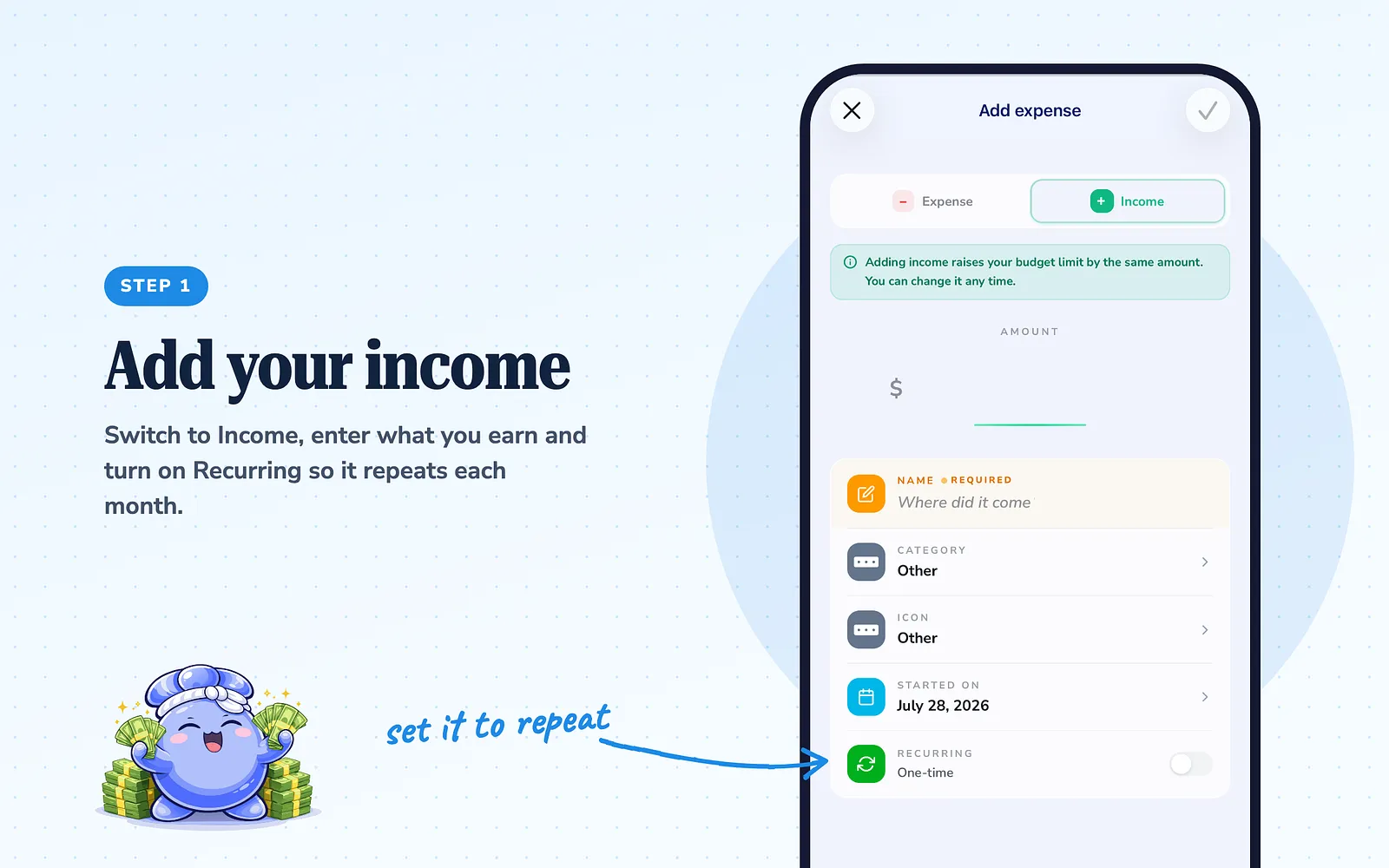
Open Add expense and switch to Income. Enter what you earn and turn on Recurring so it repeats each month. Adding income raises your budget limit by the same amount, so your plan starts from real money.
Step 2: Pick your budget method on Assign budgets
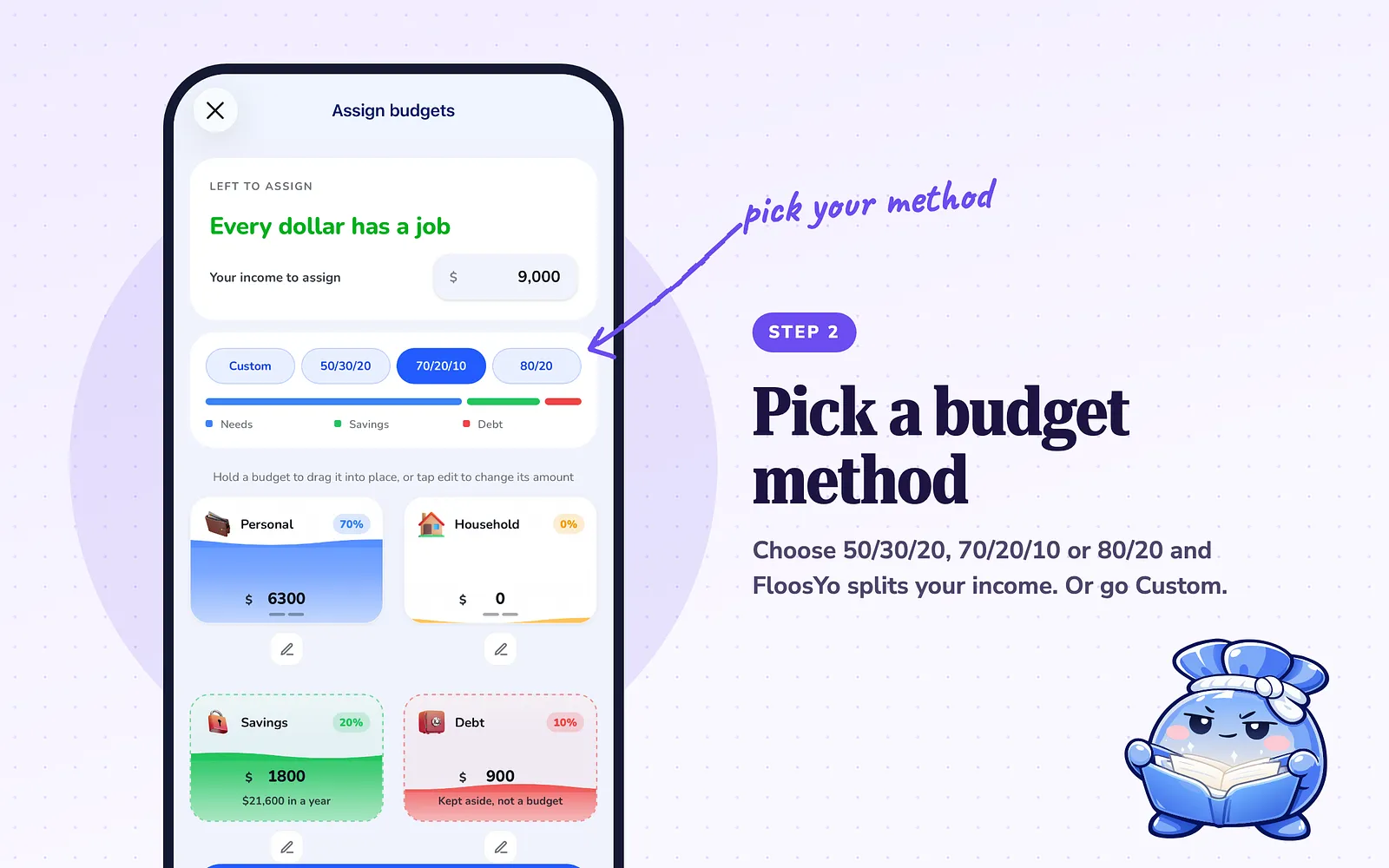
On Assign budgets, pick 50/30/20, 70/20/10, 80/20 or Custom. FloosYo splits your income for you, and you can edit any amount. Tap Confirm plan when it looks right. With Needs and Wants budgets in place, new expenses are sorted into the right one by their category.
Step 3: Turn on Apple Pay taps
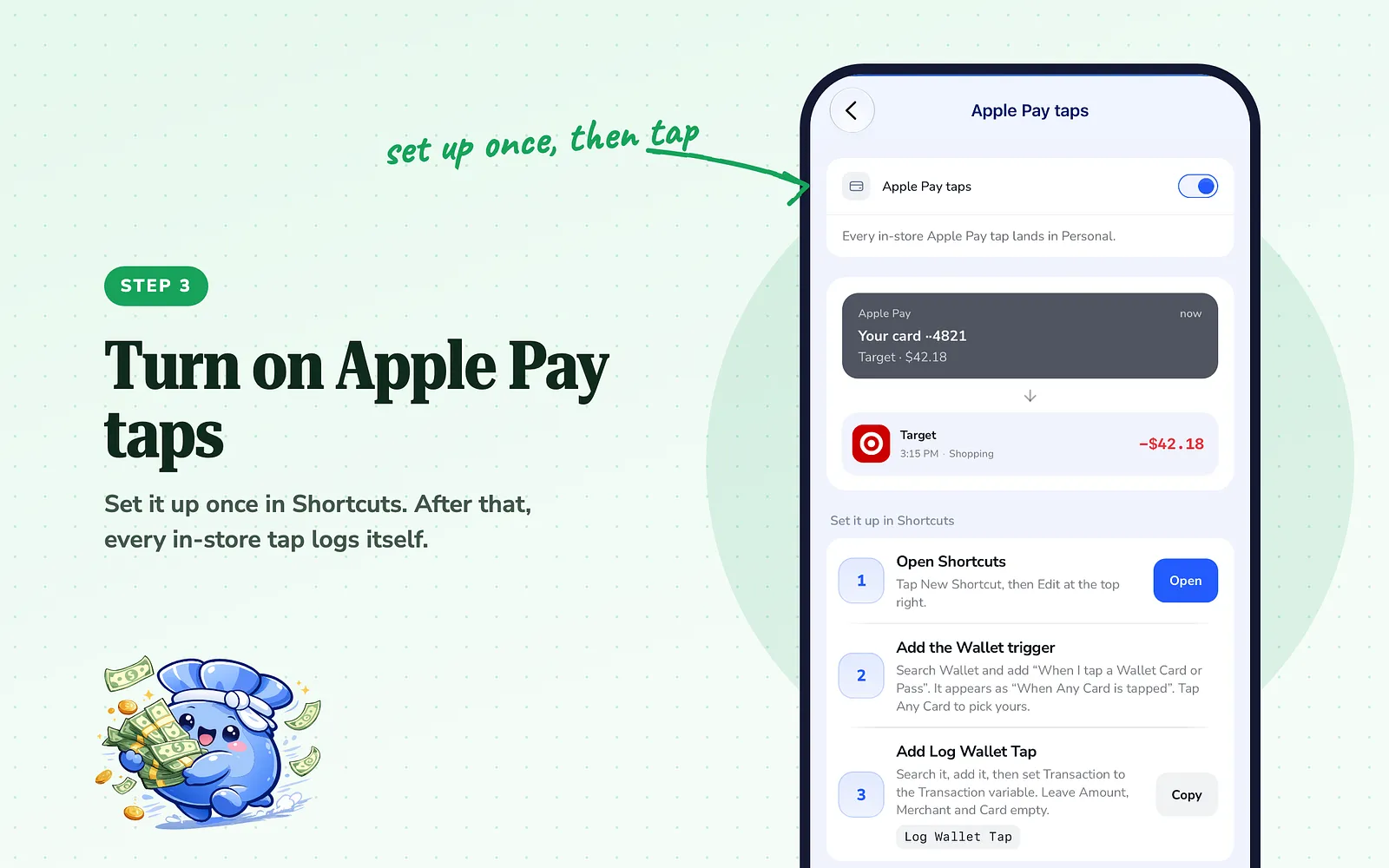
Turn on Apple Pay taps and follow the three short steps to set it up once in the Shortcuts app. After that, every in-store Apple Pay tap is logged on its own. You don't type anything.
Step 4: Speak or type everything else
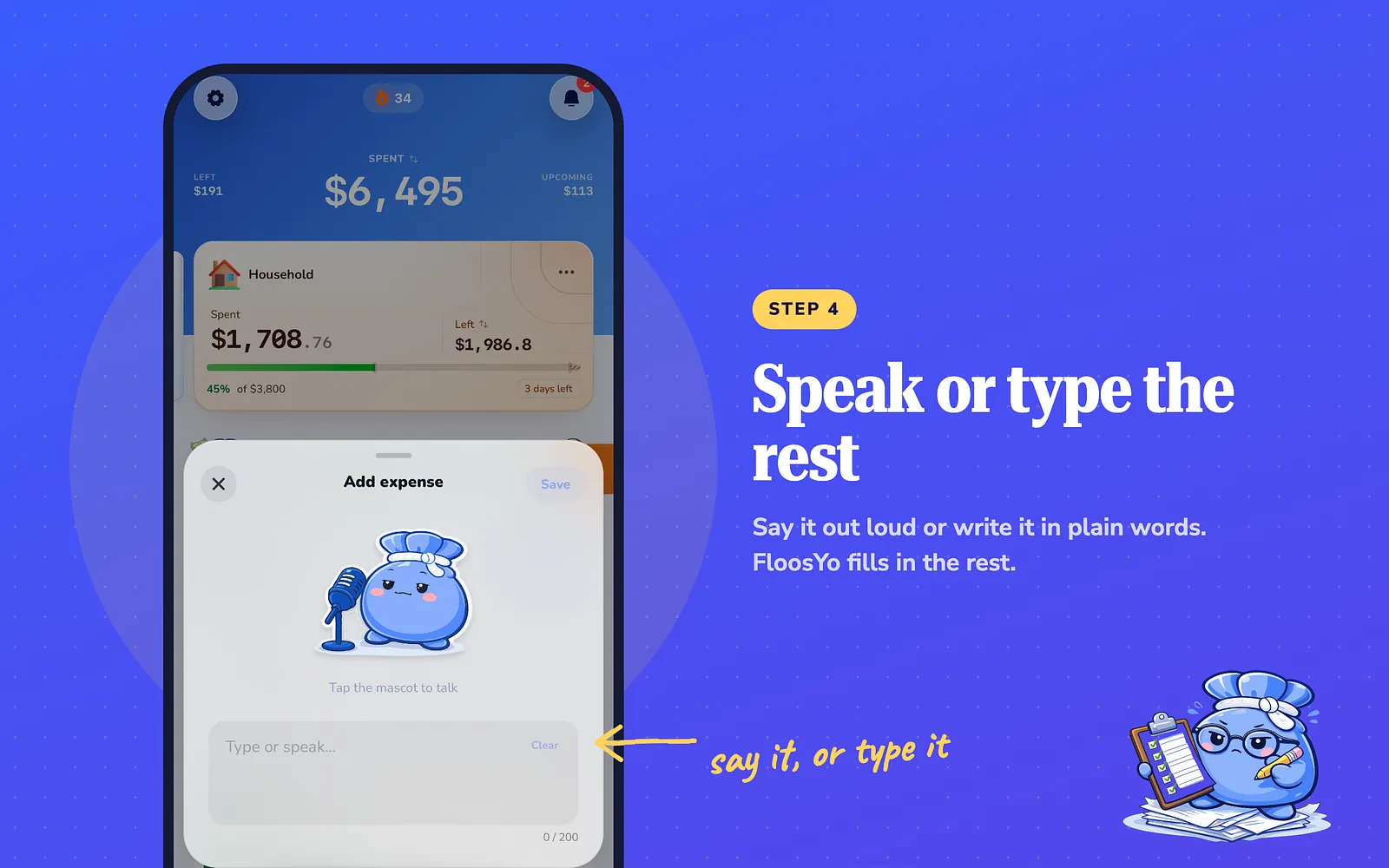
For cash and anything else, open Add expense and choose Speak or Type. Say it out loud, or write it in plain words, and FloosYo fills in the rest. In a busy place, Type works just as well as Speak.
What to do today
Give yourself 10 minutes. Set up one budgeting app the way you already pay: card, cash, phone taps, or your bank. If you don't have a working budget by the end of those 10 minutes, that app isn't the one for your lifestyle. Try the next one.
Common questions
Do I have to link my bank to use FloosYo?
No. You can log everything yourself by typing, speaking, or with Apple Pay taps. Linking a bank is optional and available in the iPhone app.
Can I use FloosYo on the web?
Yes. The web version is live. Bank linking, voice, Siri and Apple Pay logging are on iPhone.
Which budget methods can I pick in FloosYo?
50/30/20, 70/20/10, 80/20, or Custom. You can edit any amount after you pick one.
Can I log an expense with Siri?
Yes. On iPhone you can tell Siri what you spent and FloosYo logs it.
Is there a free trial?
Yes. FloosYo has a 1-week free trial.
Sources
- FloosYo features, labels and budget methods described here: checked in the app, November 2026.
- The user story: FloosYo support conversations, shared without names.
- The story and opinions: the FloosYo team's own experience with Apple Notes, pen and paper, and YNAB.
Keep reading
Coming from another budgeting app? See how FloosYo compares to YNAB, Mint, Monarch or Rocket Money.
Which budget fits me: See which split fits the amounts you enter. Budget my income: Give every dollar a job before the month starts.