

You check your bank app and see a charge for a subscription you barely remember starting. The service might still be installed, but you haven't opened it in months. Or you deleted the app weeks ago and assumed that ended the billing. Meanwhile, the next renewal date is approaching.
A cancel subscription app can help, but only if you use it before the charge lands. The useful system isn't a list of cancellation buttons. It's a repeatable process that finds recurring charges in your bank records, converts them into yearly costs, alerts you before renewal, and gives you a clear choice to keep, skip, downgrade, or cancel.
How to Cancel Subscription: Why Subscriptions Keep Charging When You Forgot Them
To cancel a subscription on an iPhone, open Settings, tap your name, choose Subscriptions, select the subscription, and tap Cancel Subscription. If Apple is not the billing party, you need to cancel it on the provider’s website instead. If you use an iPhone and want fewer surprise charges, better control over recurring expenses, and a clearer view of what is still renewing, that is the whole point of this guide.
The surprise usually begins with a small monthly amount. A streaming plan, cloud-storage upgrade, fitness membership, food-delivery pass, or productivity tool feels harmless when viewed separately. The problem appears when several small charges renew at different times and no single screen shows the full annual picture. That is why this article walks through both sides of the job: how to cancel subscriptions through Apple, how to spot provider-billed charges Apple does not list, how to review bank statements for all recurring payments, and how to keep subscription spending under control without a spreadsheet using tools such as FloosYo.
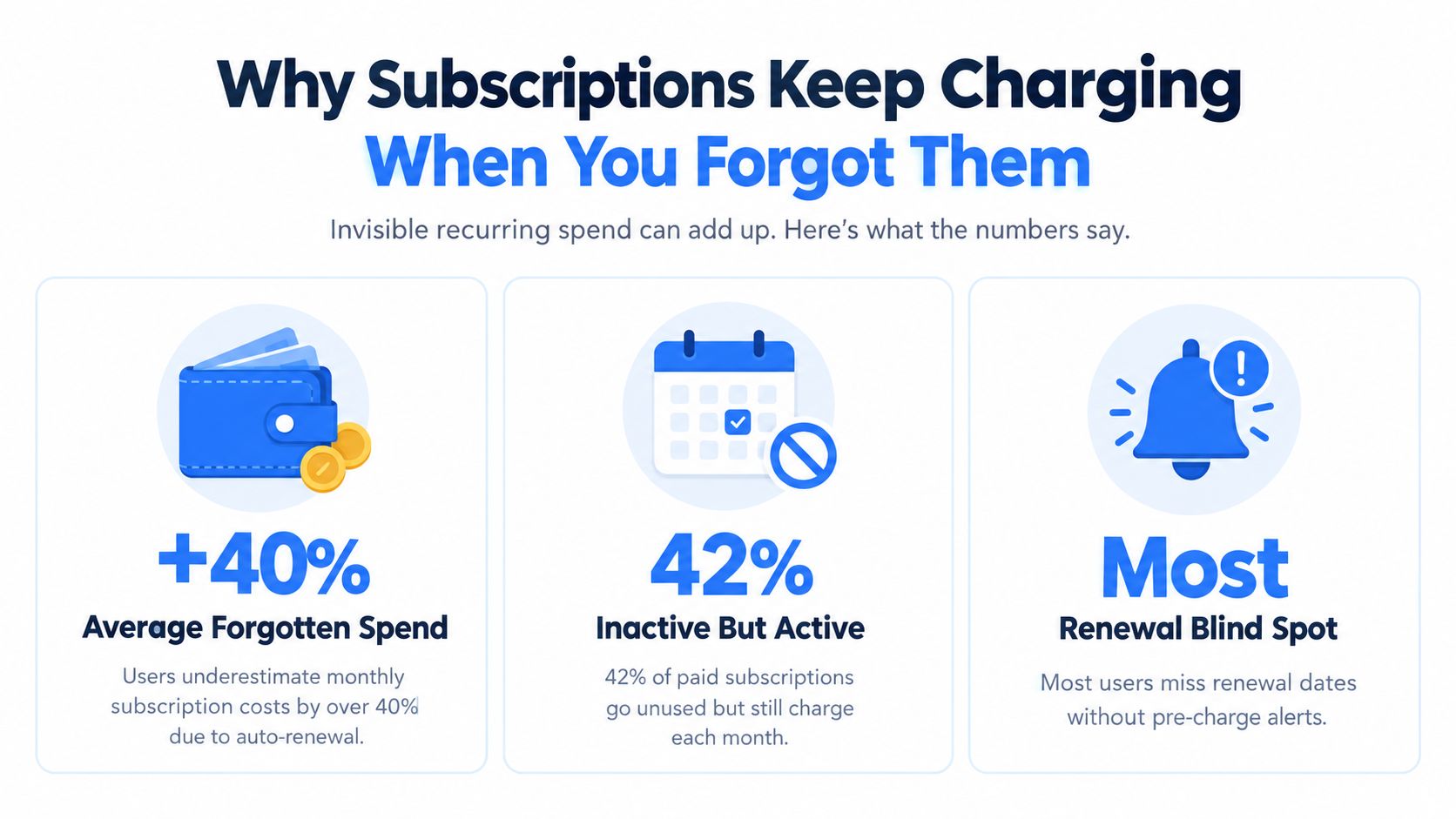
A major 2026 U.S. survey-based benchmark illustrates the blind spot. Consumers estimated that they spent $86 per month on subscriptions, while itemized spending averaged $219 per month, a difference of $133 each month. On a yearly basis, that meant actual recurring spending of about $2,628, compared with a mental estimate of $1,032, as reported in subscription spending research from Consumer Research. The exact lesson is more important than the individual charge: memory is a poor subscription-management system.
The charge continues because cancellation is a separate action
Deleting an app removes its icon, not its billing agreement. Apple-managed subscriptions continue through the Apple Account until you turn off renewal. Direct-billed subscriptions continue through the provider's website or account settings. A free trial can also become a paid plan unless you cancel through the platform or merchant that processed the sign-up.
Cancellation can also be intentionally difficult to locate. A 2024 review by the FTC, ICPEN, and GPEN found widespread use of dark-pattern practices in examined subscription websites and apps. The FTC's subscription study reported that 81% of reviewed sites and apps used a less obvious form of auto-renewal, 70% didn't provide cancellation information, and 67% didn't clearly state the cancellation deadline. Those figures explain why “I'll cancel later” often turns into another charge.
Practical rule: Treat every recurring charge as a decision with a deadline, not as a permanent background expense.
The right workflow has three layers. Check Apple's subscription center for App Store billing, check the service itself when Apple isn't the merchant, and review bank records for charges you've stopped noticing. Then convert each amount to a yearly total. A monthly charge multiplied by 12, a quarterly charge multiplied by 4, and an annual charge left as listed makes the tradeoff visible, following the recurring-expense method described by WorthCalc.
How to Cancel Subscriptions on iPhone Through the App Store
Start with Apple's subscription settings when the App Store processed the payment. Don't waste time searching inside the app first. To cancel your subscription, use the exact platform where you signed up. The app may have an account page, but Apple controls the renewal for subscriptions purchased through the App Store. Before you look elsewhere, check Apple and Google Play for active subscriptions.
Follow the Apple-managed path
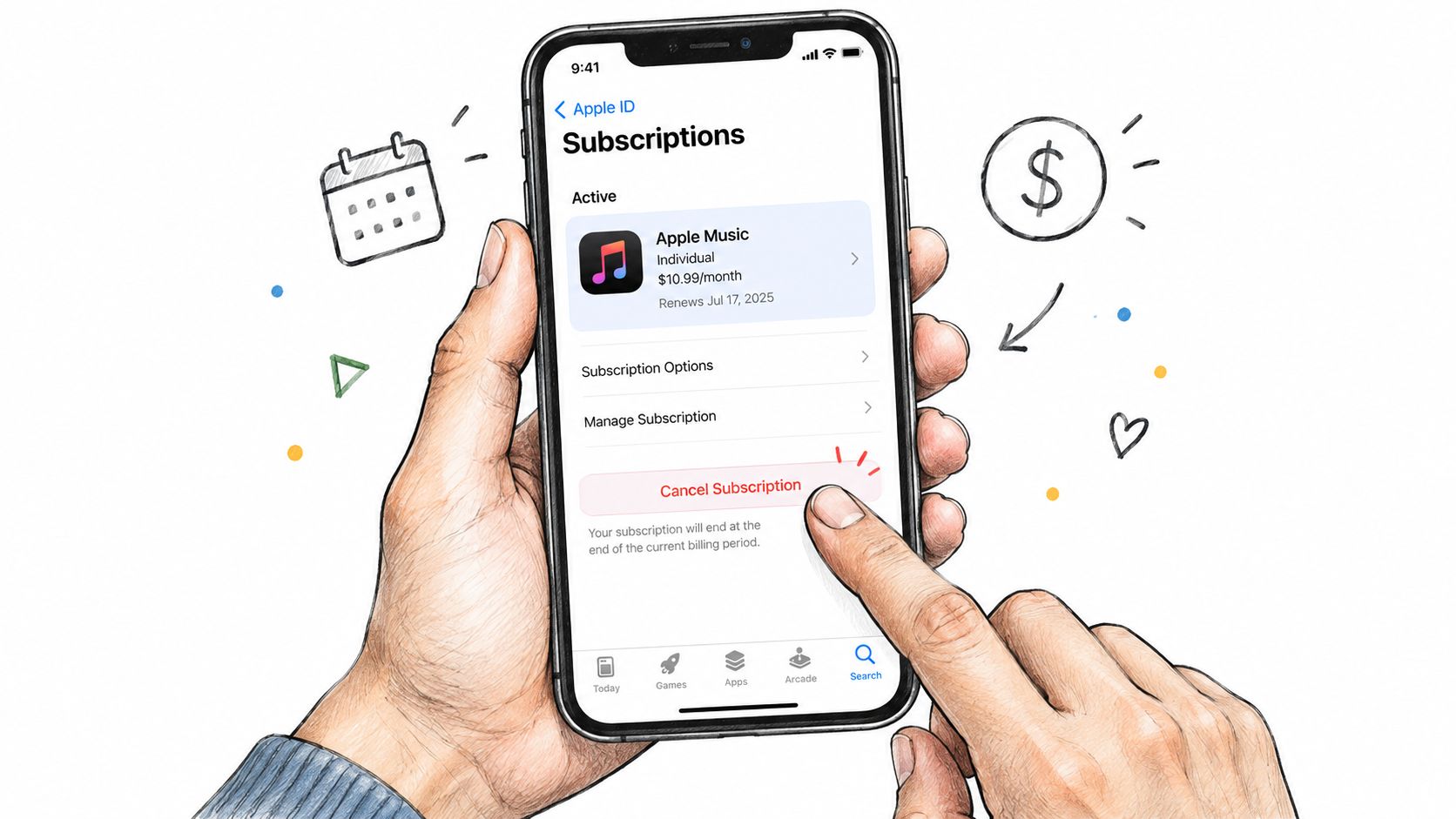
On your iPhone:
Open Settings.
Tap your name at the top.
Tap Subscriptions.
Select the subscription you want to stop.
Check the renewal date, billing frequency, and displayed price.
Tap Cancel Subscription or the equivalent cancellation option.
Confirm the cancellation through Apple's prompts.
Apple usually leaves access available through the current paid period after you cancel, and most subscriptions do not prorate cancellation mid-cycle. That means you can turn off renewal immediately without losing the remaining access you've already paid for. If you're looking at a trial, cancel at least 24 hours before the trial ends rather than waiting for the final day.
Use this iPhone subscription cancellation guide from FloosYo if you want the same route with additional screen-by-screen context.
The confirmation screen is the important part. After tapping cancel, return to the subscription entry and look for a status showing that it will expire or end on a specific date. Save a screenshot of the confirmation screen as proof of cancellation, especially if the renewal was unexpected and you may need to request a refund or challenge a later charge.
If the subscription isn't listed
An absent subscription doesn't prove that billing has stopped. Check whether:
You're signed in with the same Apple Account used at purchase.
A family member subscribed through Family Sharing.
You used another Apple Account on an older iPhone or iPad.
The charge description identifies a website or merchant rather than Apple.
The subscription was purchased directly inside the provider's website.
If the charge came through Apple but you can't identify it, search your email for Apple receipts and compare the receipt account with the Apple Account currently on the device. Don't cancel by deleting the app. Confirm the renewal status in Apple's subscription center and keep the confirmation.
This walkthrough can help you verify the basic path before you act:
If Apple has already billed you, cancellation normally stops future renewals rather than automatically reversing the existing payment. Refund requests for App Store purchases should go through Apple's reporting and support channels, with your receipt and cancellation evidence ready.
When You Need to Cancel Google Play Subscriptions Inside the App Instead
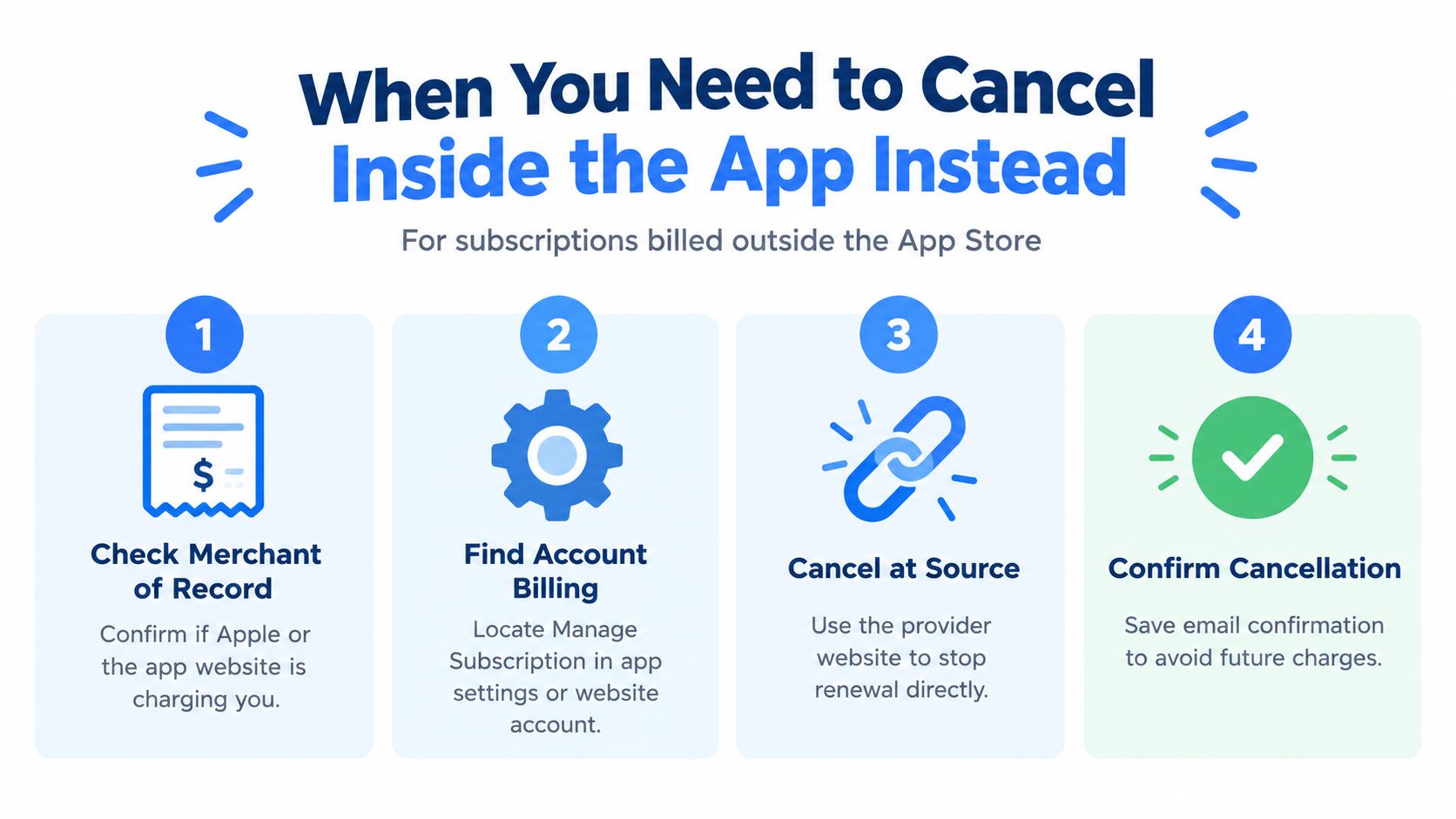
The App Store list only shows subscriptions Apple manages. Many services take payment through their own website, a payment processor, or an account portal. In that situation, tapping around Apple's settings won't stop the merchant from charging you.
Identify Who Actually Charges You on Your Credit Card
Begin with the bank transaction or receipt. Look at the merchant name, email receipt, and payment description. Your first question is simple: Does Apple appear as the billing party, or does the service name appear directly?
If the service bills you directly, sign in to the account associated with the charge. Search for Account, Billing, Plan, Membership, or Manage Subscription. The company may show retention prompts with discounts or alternative plans during the cancellation process. On an iPhone, you may need to open the provider's website in Safari rather than rely on the app's settings menu.
Free trials deserve immediate attention. A trial's end date is a renewal deadline, not a reminder that can wait until the charge appears. Turn off renewal while the trial is active, cancel at least 24 hours before the trial ends, then save the confirmation page or email.
Save evidence before you leave
Some cancellation flows ask you to choose a reason, reject several offers, confirm more than once, or contact support through chat or email. Follow the process until you see a final confirmation. If the provider says you must call, request a written confirmation through chat or email as well.
Save:
The date and time of cancellation.
The final confirmation screen.
The confirmation email or support transcript.
The account email and merchant name.
The stated end date of access or billing.
The FTC advises consumers to keep cancellation proof, monitor statements for charges after cancellation, and dispute continued charges with the card issuer when necessary, as explained in its guidance on free trials, auto-renewals, and negative-option subscriptions.
A cancellation is incomplete until you can prove what you requested, when you requested it, and which merchant received it.
If a provider keeps billing after a documented cancellation, contact the merchant first with the evidence. If the charge continues, contact your bank or card issuer and ask about the dispute process. Don't assume that removing your payment method, deleting your account, or deleting the app will correct the record.
Find Every Recurring Charge and Unwanted Subscriptions Using Your Bank Records
Your bank statements are the most reliable starting point for subscriptions you no longer remember. App Store settings can show Apple-managed plans, and provider portals can show direct billing, but the bank record reveals what reached your account.
Open several recent statement periods and scan for repetition. Look for the same merchant appearing at a regular rhythm, even if the amount changes. Many subscription charges fall between $4.99 and $19.99 per month, which makes them easy to miss until they add up to real dollars. A phone plan may bill monthly, a software license may bill annually, and a household service may renew quarterly. Group recurring charges by merchant, then check the receipt or account before deciding whether the expense is still useful.
Convert each charge into a yearly view
Use one rule consistently:
Monthly charge: multiply by 12.
Quarterly charge: multiply by 4.
Annual charge: keep the listed amount.
Irregular habit: record each repeating purchase and estimate its normal yearly pattern without pretending it's a fixed bill.
Here's a simple working table. The totals are formulas, not assumed prices, so replace each example amount with the amount from your own bank record. For most subscriptions, charges often sit in the $4.99 to $19.99 range.
Example Charge | Billing Rhythm | Yearly Total |
|---|---|---|
$9.99 cloud storage | Monthly | $119.88 |
$15 fitness membership | Monthly | $180 |
$24 phone add-on | Quarterly | $96 |
$90 software plan | Annual | $90 |
The small charges become easier to judge when you see the yearly commitment beside them. A service used every week may justify its cost. A service opened once and forgotten may deserve cancellation, a lower tier, or a skipped cycle.
Rank decisions by value, not annoyance
Start with charges that meet one of three conditions:
You don't recognize the merchant.
You recognize it but haven't used it recently.
You use it occasionally, but the annual cost no longer matches the value.
Some recurring expenses aren't subscriptions at all. Delivery memberships, phone add-ons, cloud storage, household services, and frequent food or ride-hailing purchases can create the same leakage. Include them in the review, but label them accurately so you don't cancel a needed bill by mistake.
FloosYo connects to bank accounts through Plaid, detects repeating charges, attaches merchant logos, and projects monthly and annual totals. It can help you spot unwanted subscriptions across the charges you already review. It also accepts voice or text entries for expenses a bank feed misses. If you want a bank-record method in a separate walkthrough, use this guide to checking subscriptions.
For each line, choose one status: keep, reduce, skip, cancel and save a screenshot of the confirmation screen as proof, or monitor. Write the renewal date beside it. If a charge no longer earns its place, use the list to cancel unwanted subscriptions before the next billing date. The point isn't to create a perfect financial spreadsheet. It's to make the next charge visible early enough for a real decision.
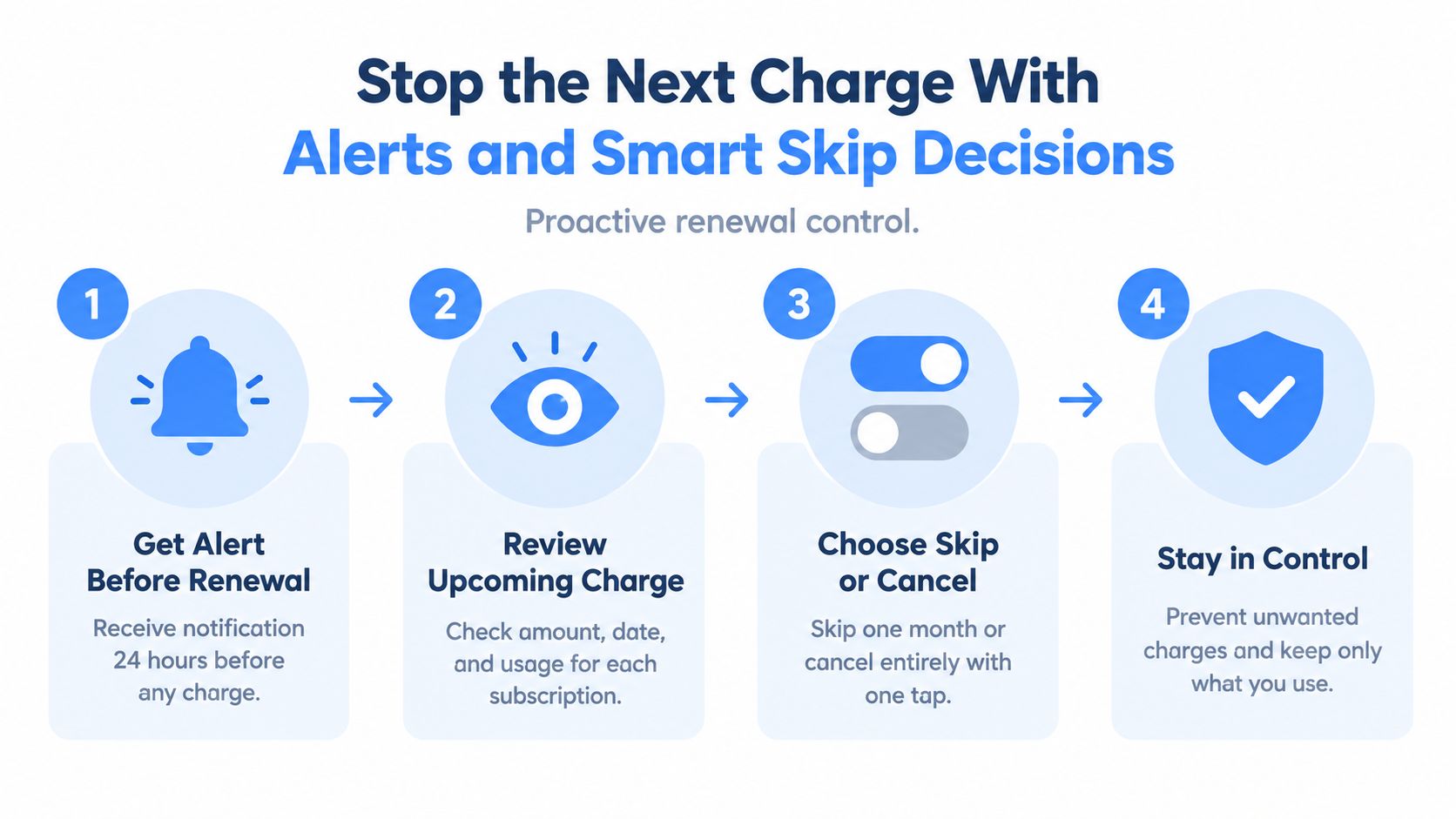
Stop the Next Charge With Alerts and Smart Skip Decisions
The highest-value cancellation moment is before renewal. After a charge lands, you're left with a support request, refund question, or dispute. Before renewal, you can make a clean choice while the subscription is still active.
Research based on large payment-card-network data found that card replacement and active renewal requirements produce much higher cancellation rates, and estimated that inattention and switching-cost friction can roughly double seller revenue compared with a low-friction baseline, as described in the Bowdoin research record on renewal friction. The practical takeaway is direct: intercept the renewal window.
Put a decision before the payment
A useful alert should show more than “subscription renewing.” It should give you the merchant, amount, date, and projected yearly cost. That lets you answer the only question that matters: Do I want to keep paying for the next period?
Use a short decision routine:
Keep it: Confirm that you still use it and accept the projected yearly cost.
Skip a cycle: Use this for seasonal services or a temporary pause.
Downgrade it: Check whether a lower tier covers your actual use.
Cancel it: Turn off renewal, save proof, and allow enough time before renewal because the cancellation process can vary with a company’s design choices.
Investigate it: Review the merchant before taking action if the charge isn't familiar or the payments don't look right.
A skip decision can be more realistic than permanent cancellation. A seasonal fitness plan, cloud upgrade, or delivery membership may be useful later but unnecessary for the next billing period. If your tool supports savings goals, route the amount you didn't spend into one specific goal. Recording the saved amount turns a cancellation into visible progress instead of an unnoticed absence from your statement.
Time alerts around how you pay attention
Set reminders early enough to act, not merely to notice. A pre-charge alert the day before can work for simple monthly services, while less familiar annual renewals deserve an earlier review. During a trial period, set a calendar reminder at least 24 hours before it ends so you can decide before automatic payments begin. If several expenses renew together, use a consolidated digest so you can review the group in one sitting instead of dismissing separate notifications throughout the day.
You can compare this approach with iPhone reminder apps for recurring decisions, but don't settle for a reminder that lacks the amount and renewal context. A notification that says “check subscription” creates another task. A notification that says “review this upcoming yearly commitment” creates a decision.
Best habit: Review the upcoming charge, not the last charge. The past explains your spending. The renewal alert gives you control over what happens next.
Don't wait for a failed payment or expired card. The research above specifically identifies post-failure intervention as a weaker moment because the renewal decision has already passed. Review active recurring expenses while the account is still open, the amount is clear, and cancellation can prevent the charge rather than clean up afterward.
Your Simple Plan to Keep Recurring Spend Under Control
You don't need to monitor every transaction constantly. You need a routine that catches recurring expenses at three points: where the subscription is managed, where the charge appears, and before the next renewal.
Start with Apple and google play. Review Apple's subscription list and your google play subscriptions for active subscriptions before checking providers directly, and verify each renewal date. Finish with your bank records, because a merchant can still be charging you through a website or another account even when the iPhone screen looks clean.
Use a monthly review that takes one sitting
Once a month, review the recurring list and update four fields, checking recent credit card transactions for recurring payments and missed price increases:
Merchant: Identify the service and billing source.
Cadence: Mark monthly, quarterly, annual, or irregular.
Yearly cost: Convert the charge into an annual figure.
Decision: Keep, reduce, skip, cancel, or monitor.
When a renewal alert arrives, don't postpone the decision. Open the relevant settings, cancel at the source, save confirmation, and check the bank statement or credit card afterward. If you keep the service, leave a note about why it earns its place. That simple record makes the next review faster, helps you save money by catching services you no longer use before they renew, and prevents you from re-litigating every charge from scratch.
Track savings as an outcome
A canceled subscription matters because it reduces future outflow. Record the projected yearly amount, then add skipped cycles and downgrades separately. Don't count money as saved until the charge is prevented, but do track each confirmed change so the progress becomes visible.
FloosYo is built around this pre-charge workflow. It connects read-only to bank data, identifies recurring expenses, supports voice entry for missing items, shows monthly and yearly projections, sends renewal notifications, and presents skip or cancel decisions with savings scenarios. Its savings-goal feature can move a skipped amount toward one selected goal, while widgets show due items and progress without requiring a full app review.
The first action is small. Open your bank app, find the next recurring charge, and write down its merchant, renewal date, billing rhythm, and yearly cost. Then decide whether you're keeping it because you use it, or merely because you haven't stopped it yet.
FloosYo connects your bank records to recurring-charge detection, yearly projections, renewal alerts, voice entry, and concrete skip or cancel decisions. Visit FloosYo to see how it can help you stop surprise renewals and track the savings that follow.