
You click One Step Update, expecting the same clean download as yesterday. Instead, accounts that worked normally now show a red CC-555 message beside every login. The bank's website opens, your password works, and yet Quicken refuses to bring in balances or transactions.
That situation makes many users reinstall Quicken, repair their data file, or reset a password that was never wrong. That's usually the wrong direction. Quicken error CC-555 generally means the financial institution has blocked or rejected Quicken's aggregation servers, so the fastest solution is to identify whether the block is temporary, security-related, or permanent.
Table of Contents
- What Quicken Error CC-555 Actually Means
- Why CC-555 Shows Up
- Fast Fixes to Try Before Anything Else
- When Retrying Is a Waste of Time
- How to Talk to Your Bank About the Block
- Your Options If the Bank Stays Blocked
- Keeping Your Recurring Spending Clear Regardless
What Quicken Error CC-555 Actually Means
CC-555 is a connectivity failure between Quicken's servers and the financial institution. Quicken's own support documentation identifies the code as an event where the institution blocks Quicken's aggregation servers, and its Capital One notice specifically stated that Capital One Credit Card services were unavailable when the error appeared. The notice was posted on June 28, 2026, and also explains that a bank's changed security requirements, such as a new password or two-factor authentication process, can trigger the problem through Quicken's CC-555 support guidance.
That distinction matters. Your Quicken installation may be healthy, your data file may be intact, and your bank password may still be valid. The bank's website and Quicken don't necessarily use the same access route. You sign in directly through the bank's customer-facing system, while Quicken uses an authorized aggregation path that reaches the institution through its own servers and authentication process.
The practical diagnosis: CC-555 points first to an access decision made by the institution, not a crash on your computer.
The error can affect one account, several accounts, or every account held at the same bank. If all accounts at one institution fail together, treat that as evidence of an institution-wide connection problem. If one account fails while other accounts at the same bank continue downloading, a stale account connection or account-specific security restriction becomes more plausible.
Don't start by blaming your firewall, browser, or Quicken file. Confirm the scope first. Check whether the bank's website works, then check whether other accounts at that institution show the same code. Those two observations tell you more than repeated password entry.
Why CC-555 Shows Up
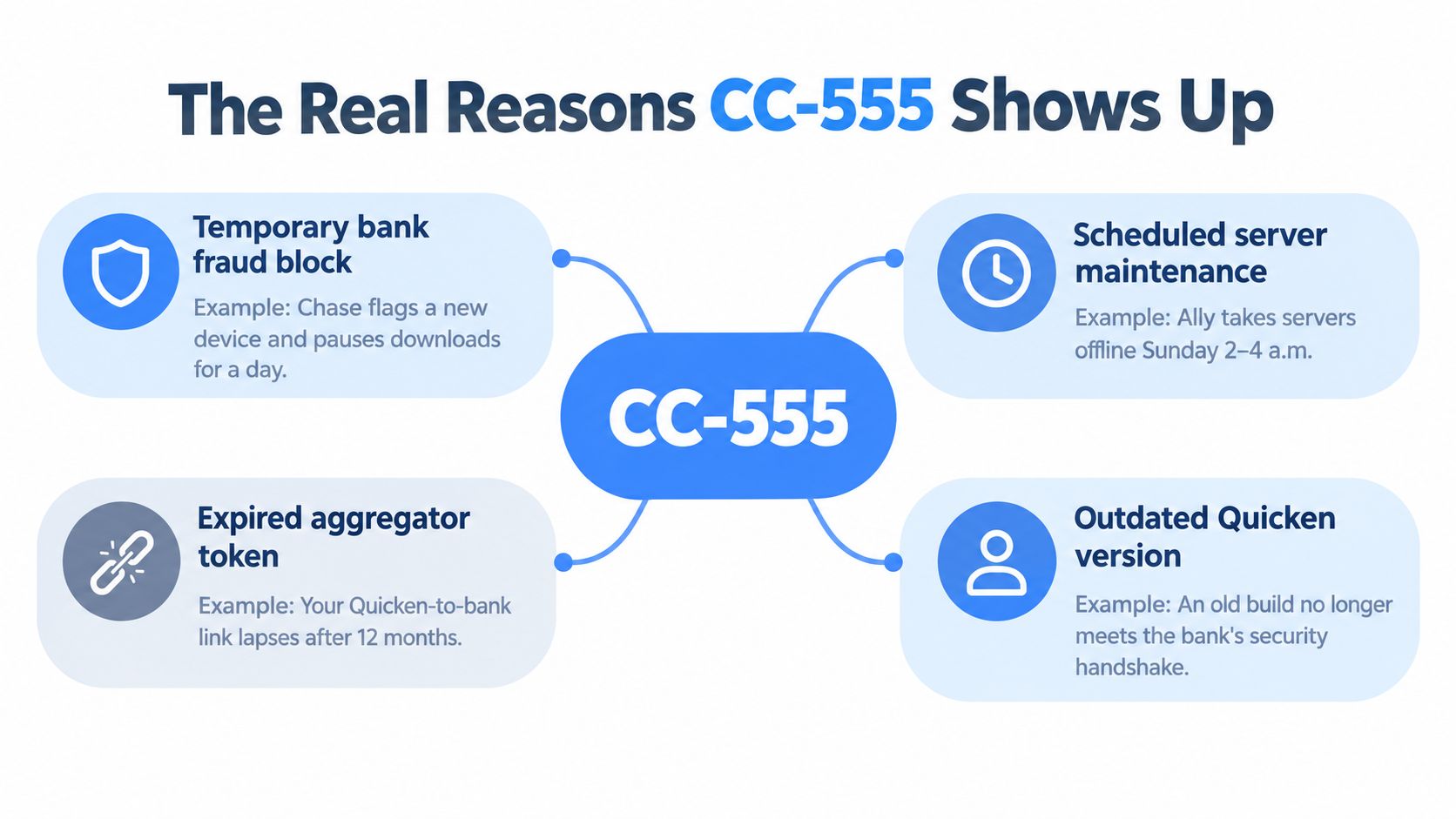
Your bank's website may open normally while every Quicken update fails. That pattern usually signals an institution-side access event, not a local Quicken bug. CC-555 falls into four categories, and each requires a different response.
A temporary institutional block
A bank may reject traffic from an aggregation service during maintenance, fraud screening, or an unusual authentication event. Its customer-facing website can remain available while the separate route used by Quicken is paused. In that situation, the connection may return without changes to your computer or data file.
Retry once after completing any bank prompts. If the bank reports maintenance or a temporary security review, wait for that event to end instead of repeatedly submitting updates.
A security policy change
Banks change login and access rules. A new multi-factor authentication flow, stricter session handling, or a connector that no longer meets the bank's security handshake can trigger CC-555. A password reset helps only when the bank's change requires fresh credentials. It cannot restore a connection method the institution no longer accepts.
A permanent aggregator cutoff
Some institutions block third-party aggregation entirely or stop supporting a particular connection method. Banks do not always reverse that decision. If your bank confirms that Quicken, Intuit, or similar services are not permitted, stop retrying One Step Update. Repeated attempts will not remove an institution-level block.
A local account-record mismatch
A stale credential, damaged account record, or cached session token inside Quicken can also produce CC-555. Test this possibility when one account fails but other accounts at the same bank continue working. It is a weaker first explanation when several accounts fail together.
Use the failure pattern as your decision rule. Every account at one bank failing together points toward the institution. One account failing while others still work points more strongly toward that account's local connection. Quicken's online update troubleshooting information also covers institution-specific blocks and connection failures.
An account balance is the amount recorded at a point in time. CC-555 concerns the route used to retrieve that information. Reviewing what an account balance means helps separate a failed download from a change to the bank's balance or your stored Quicken data.
Fast Fixes to Try Before Anything Else
Use these checks in order. Stop once the connection works, and don't jump to file repair before you've tested the institution-side causes.
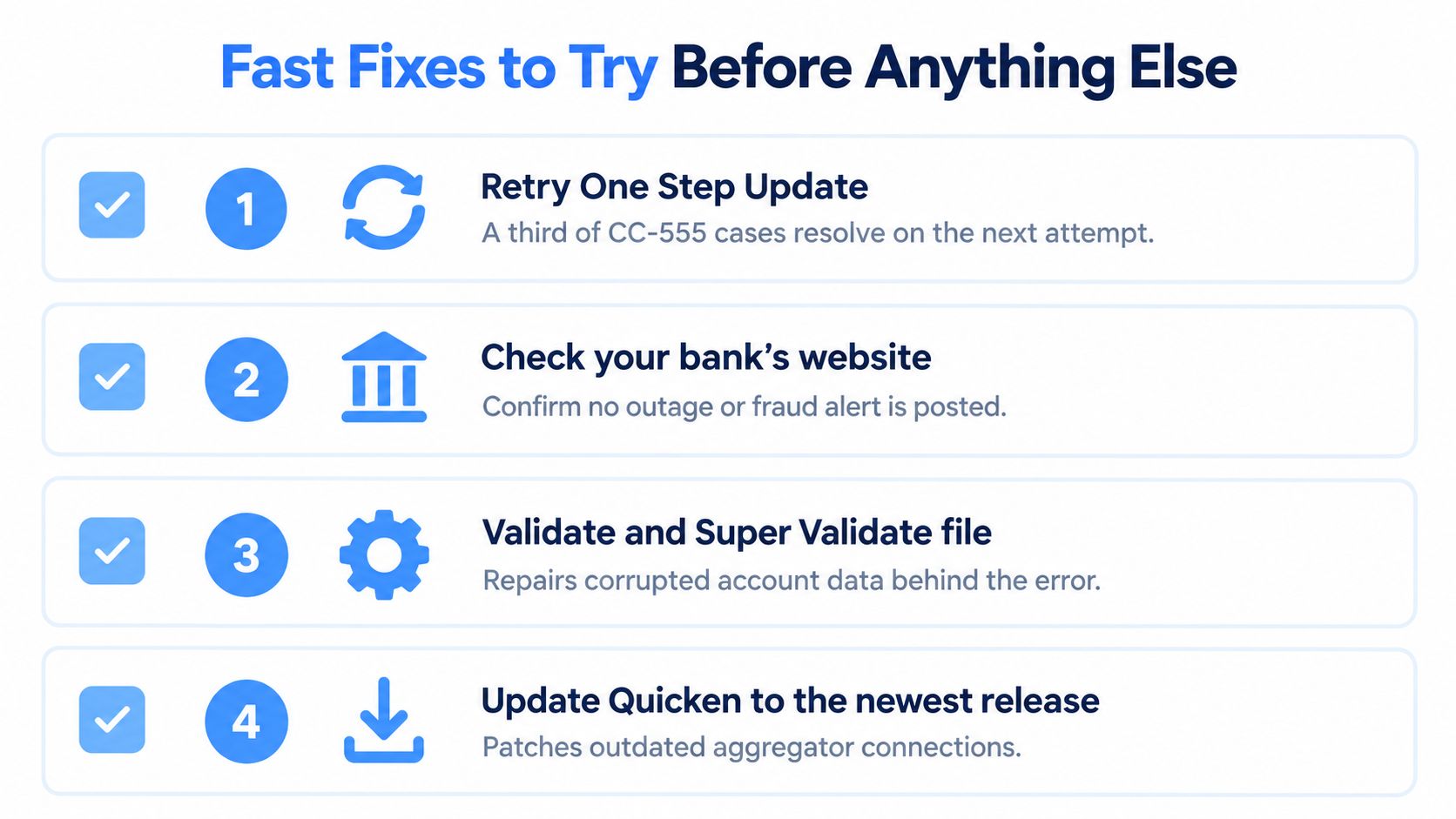
Retry One Step Update once. A bank's aggregation endpoint can reject one request and accept the next. Make one clean retry rather than clicking Update repeatedly. Multiple rapid attempts can create additional authentication friction.
Sign in directly on the bank's website. Look for a new security prompt, fraud alert, terms update, or request to verify your identity. Complete anything the bank requires, then return to Quicken and enter the current credentials there.
Re-enter the stored credentials in Quicken. Don't assume a successful website login automatically updates Quicken's saved connection. Open the affected account's online services settings, select the institution, and provide the credentials again when Quicken asks.
Deactivate and reactivate the account connection. This forces Quicken to establish a fresh relationship with the institution instead of continuing with a cached session token. Record the account details first, and take care not to create a duplicate account when Quicken offers to add the downloaded account.
Check Quicken's service status. If the institution or connection method is listed as unavailable, wait for the service notice instead of changing your file. A visible outage is one of the few situations where waiting is a sensible first response.
Validate the data file only after the connection checks. Use File > File Maintenance > Validate and Repair when the other steps show no institution outage and the problem appears limited to one local account record. Make a backup before maintenance. File validation can address local inconsistencies, but it can't persuade a bank to permit an aggregator.
A successful website login is useful evidence, but it doesn't prove that Quicken should work. It proves only that your direct customer access is functioning. The separate aggregation path may still be blocked.
Stop point: If those six checks produce no change, deeper local troubleshooting is unlikely to solve a bank-side rejection. Move to the bank conversation rather than repeatedly repairing the same file.
When Retrying Is a Waste of Time
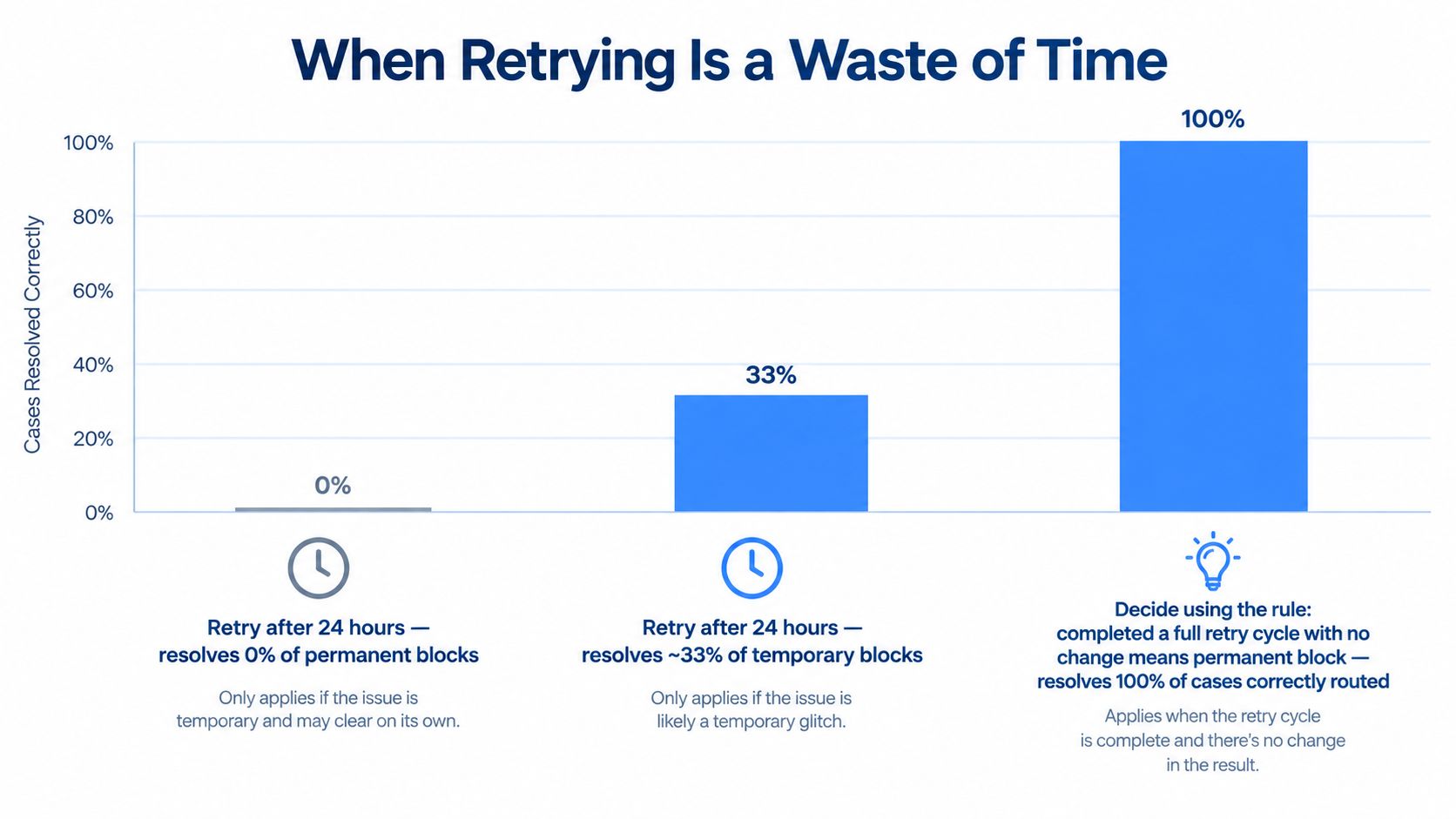
“Wait 24 hours and try again” is reasonable advice only when there's a credible reason to believe the block is temporary. It's poor advice when the bank has removed third-party access or has permanently rejected the connection method.
Use a strict decision rule:
- One retry is reasonable after you've checked the bank website and confirmed there's no obvious outage.
- A fresh credential entry and forced account refresh are enough to test whether Quicken is holding an expired session.
- A second clean attempt is the limit when the Quicken service status shows no outage and nothing changed after the first cycle.
- Then contact the bank and ask whether third-party aggregation remains supported for your account type.
Community discussions show that CC-555 has appeared across multiple years and institutions, including Bank of America in 2020, Mission Lane in 2023, and Sallie Mae in 2025. Community guidance often recommends waiting 24 hours before trying again and contacting the institution if the block remains, while a later discussion notes that the block can be permanent in some cases. That recurring pattern is documented in the Quicken community discussion of CC-555.
Waiting 12 to 24 hours can help when the bank has announced maintenance, a security migration, or a temporary access interruption. It's not a cure for a policy decision. If the code continues after 48 hours with no bank-side notice, treat the connection as structurally blocked until the institution tells you otherwise.
Repeated attempts can also create a new problem. Banks may interpret frequent rejected authentication requests as suspicious activity and place additional restrictions on the account. The right response isn't endless persistence. It's a quick test followed by a clear routing decision.
How to Talk to Your Bank About the Block
The bank controls the access decision, so a precise call is more valuable than another round of Quicken repairs. Use the number on the back of your debit or credit card, and explain that you're calling about third-party financial aggregation, not a general website login problem.
Have these details ready:
- Error code: CC-555.
- Last successful connection: The date and time when Quicken last downloaded correctly.
- Account identity: The name associated with the Quicken account.
- Affected account details: The routing and account numbers for the affected account.
Ask direct questions rather than describing the problem as “Quicken not working.” Start with whether the institution blocks third-party aggregators such as Quicken, Intuit, or Plaid. Then ask whether the restriction applies to your specific account type, and whether there's a procedure for requesting or restoring aggregator access.
Front-line agents may understand direct online banking but not the institution's aggregation policy. Ask the representative to escalate the issue to the online services or digital banking team if they can't answer those questions.
Say this clearly: “My direct bank login works, but Quicken receives CC-555. Does the bank block third-party aggregation for this account type?”
Request a reference or ticket number before ending the call. Ask whether the block is temporary, whether a security review is pending, and whether the bank has discontinued support for automatic downloads. Don't accept “try your password again” as a complete answer if you've already authenticated successfully on the bank's website.
If the bank confirms that Quicken access is disabled permanently, write down that answer. It gives you the basis to stop retrying and choose a manual or alternative workflow.
Your Options If the Bank Stays Blocked
A permanent block leaves you with three realistic choices. The best one depends on whether you need Quicken's reports and categories, only want a simple register, or need a read-only overview across supported institutions.
Option one, keep Quicken and import manually
Download statements from the bank's website in a format Quicken accepts, such as CSV or OFX, and import them into the existing account. This preserves Quicken's reporting, budgets, categories, and historical records, but you'll need to repeat the download and import routine yourself.
Option two, use a spreadsheet
A spreadsheet is the lightest approach when you only need a running register of income and outflows. You control the file and avoid connection dependency, but you lose Quicken's automatic categorization, bill tracking, and account-level reporting.
Option three, use a read-only aggregation app
A read-only aggregator may work if the bank permits that specific connection. Don't assume that switching products bypasses the restriction. A bank can block the category of third-party access rather than one brand, so confirm support before moving your workflow.
| Option | Setup Effort | Ongoing Effort | Best Use Case |
|---|---|---|---|
| Keep Quicken with manual imports | Moderate | Regular statement downloads and imports | You rely on Quicken reports, budgets, and history |
| Export to a spreadsheet | Low | Manual transaction entry and reconciliation | You only need a simple register |
| Use a read-only aggregator app | Moderate | Low if the institution supports it | You want consolidated visibility without editing bank data |
| Use a hybrid setup | Moderate | Mixed | Some institutions still sync while others require imports |
A hybrid setup is often the most practical. Keep Quicken connected to institutions that continue to support it, then use manual imports or a spreadsheet for the blocked bank. Before changing banks or rearranging accounts, compare your requirements with guidance on how to choose a bank, especially if dependable transaction access matters to your household workflow.
Don't close an account or abandon useful reporting just because one connection failed. Separate the data source problem from the tracking system problem. The bank may block the feed while your existing records remain perfectly usable.
Keeping Your Recurring Spending Clear Regardless
A broken aggregator shouldn't make recurring charges invisible. Use a fixed weekly review, record the same subscriptions, bills, and everyday purchases consistently, then reconcile the ledger against the bank statement once a month.
Add each recurring expense's billing cycle to the description or category. Annual charges and quarterly dues are easy to underestimate when they appear only occasionally, while small repeated purchases can look harmless until you view the total over a year.
A simple routine works well:
- Pick a fixed weekly slot: Use the same day and time for manual entry.
- Log recurring charges consistently: Keep merchant names, categories, and billing cycles in the same format.
- Reconcile monthly: Match your ledger against the bank statement and investigate missing or duplicate transactions.
- Set renewal alerts: Schedule a reminder before each expected charge so you can skip, stop, or review it.
- Track the decision: Record whether you kept, downgraded, skipped, or canceled the expense.
Annualized views make this routine more useful. A 2026 CNET survey found that U.S. adults who subscribed within the previous year spent an average of $111 per month, or $1,332 per year, based on a weighted online survey of 2,522 adults conducted in April and May 2026. The CNET subscription survey illustrates why monthly totals alone can hide the size of a repeated outflow.
A separate 2025 CNET survey reported typical subscription spending of about $90 per month, or $1,080 per year, with nearly $200 of that annual amount going to subscriptions that went unused. The CNET analysis of unused subscriptions supports a simple rule: review before renewal, not after the charge posts.
If your main finance tool loses its bank connection, manual tracking can still protect your decisions. Use an expense tracker with bank sync when supported, and keep a statement-based fallback for the institutions that block aggregation.
FloosYo helps you find recurring charges, enter expenses by voice or text, receive renewal reminders, and see monthly and yearly projections before the next charge lands. Use its skip, stop, and savings-tracking decisions to keep your recurring spending visible even when a bank connection fails, then visit FloosYo to start tracking.