
You check your phone and spot a familiar charge from a streaming service. It's already posted. The renewal came around again, and you'd meant to decide whether to keep it before then.
The amount may be small, but the missed decision is the expensive part. A bill reminder widget should put the merchant, amount, and projected yearly cost in view before the charge, so you can choose to keep, skip, or cancel instead of discovering the renewal afterward. It should also show what's due, track progress toward a savings goal, and make the next action obvious without opening the app.
That's the difference between a calendar entry you might dismiss and a useful decision surface on your home screen. A 2021 survey of U.S. consumers found that 48% felt disorganized managing and paying bills, and 51% had paid at least one bill late in the previous twelve months; forgetfulness or procrastination was cited by 37% as a leading cause (PayNearMe's 2021 consumer payment survey). A visible reminder can help turn a recurring charge from something you hope to remember into something you can act on.
Table of Contents
- The Moment a Reminder Would Have Saved You
- Adding a Widget to Your iPhone Home Screen
- What Each FloosYo Widget Actually Shows
- Reading Annualized Cost on a Small Tile
- Designing Reminders You Will Not Tune Out
- Matching Widgets to Real Spending Situations
- A Short Setup Checklist and Honest Limits
The Moment a Reminder Would Have Saved You
A yearly cloud-storage plan renews while you're busy. The charge is recognizable, but you haven't opened the service in months. You meant to check the renewal date, compare the plan, and decide whether to keep it. Now the payment has landed, and your decision has become a refund request or a note to deal with it later.
The missing piece wasn't another spending chart after the fact. It was a clear cue before the charge, with enough context to decide. A calendar alert that says “subscription” leaves you to remember which service, how much it costs, and whether the date is a renewal or a deadline. A bill reminder widget can put those details together where you already look.
A useful tile should answer four questions at a glance:
- What's coming up? Show the merchant and due or renewal date.
- What will it cost over time? Put the projected yearly total beside the recurring amount.
- What can I do? Make the choice to keep, skip, or follow the merchant's cancellation process clear.
- What happens if I skip? Show progress toward a savings goal when the expense is redirected.
For someone managing a phone plan, streaming, and cloud storage, the best widget isn't necessarily the one that shows the most charges. It's the one that puts the charge most likely to prompt a decision in view. The point is not to chase a return on idle cash or complicate a budget. It's to see what's leaving the account and act before the next renewal.
Adding a Widget to Your iPhone Home Screen
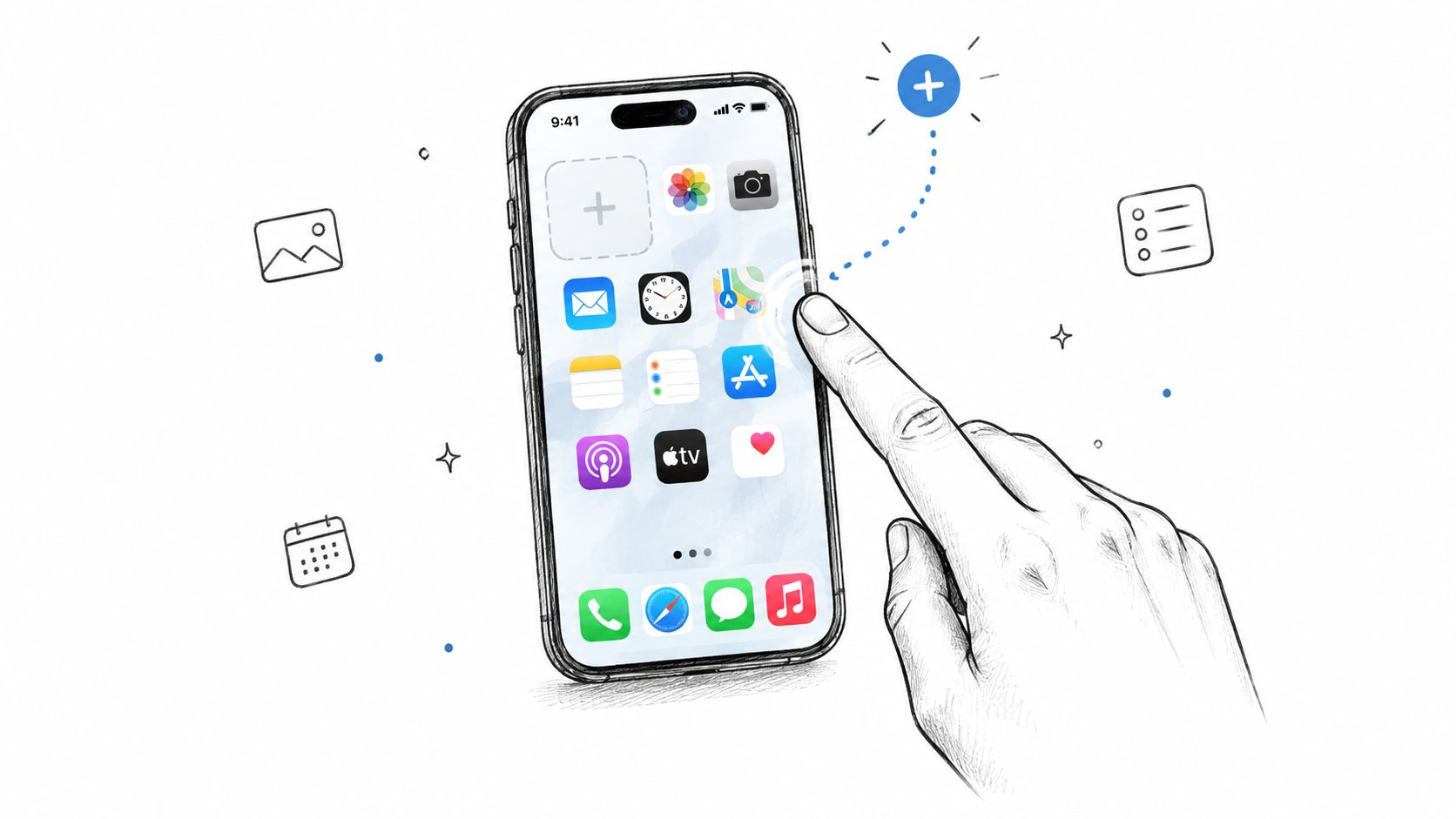
On iPhone, adding a home-screen widget takes a few taps:
- Touch and hold an empty area of the Home Screen until the icons begin to jiggle.
- Tap the plus icon that appears.
- Search for the app by name, then select it.
- Choose a size by swiping through the available options.
- Drag the widget into a spot where you'll notice it.
- Tap Done to finish.
The size is a practical choice, not a decoration. Small works when you want a single line, such as what's due today. Medium can show a short list of upcoming charges. Large is useful when you want a denser view, such as goal progress alongside budget standing. If you're comparing layout ideas, this guide to iPhone home-screen widgets can help you think through placement.
Widgets update in the background, but iOS doesn't stream live data to the screen continuously. Treat the figures you see as snapshots, not a real-time account feed. If a transaction has just occurred, the widget may need time to reflect it.
You don't grant a separate permission just to add a widget. It displays information the app has already gathered. The next question is which tile earns space on your screen, and what each one shows.
To see the iPhone widget flow in action, use this walkthrough:
What Each FloosYo Widget Actually Shows
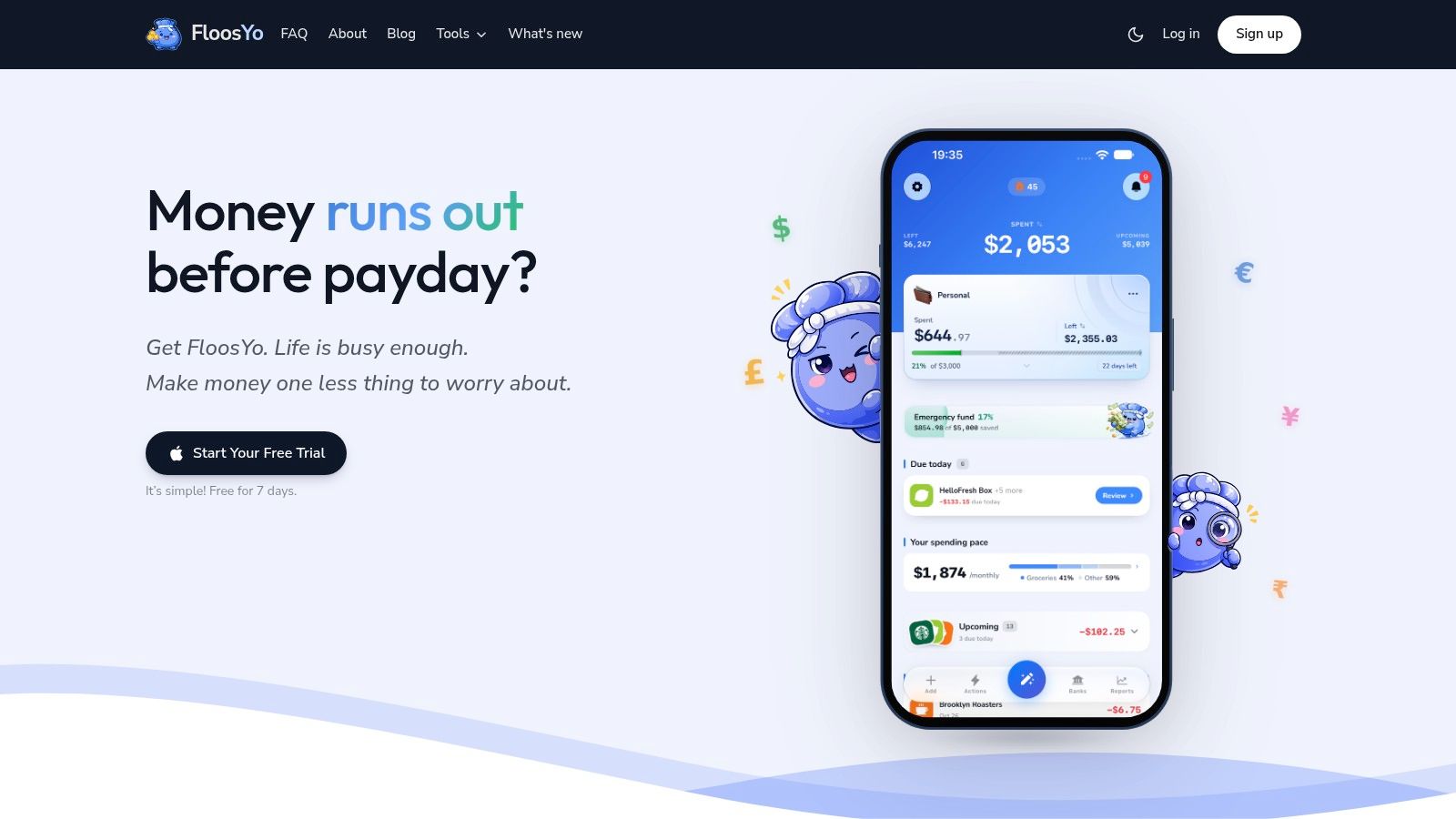
A bill reminder widget earns its place when the information on it changes what you do. FloosYo has five home-screen widgets, each built around a different glanceable decision. The app detects recurring transactions from connected bank activity; charges it identifies as recurring can appear without you entering every merchant and date by hand.
Due Today
This tile shows the next charge, the merchant's logo, and the amount. Choose it if one visible nudge is enough, such as a phone plan you want to check before it renews. It's available in small and medium sizes, and it suits a quick morning check better than a full list of every recurring expense.
Upcoming
Upcoming lists the next several renewals with their dates and projected annual costs. It's useful when several charges cluster in the same stretch of the month and you want to review them together. The small or medium layout gives you more context than a single-charge reminder.
Goal
Goal displays the running amount directed toward a savings target and the percentage of that target completed. It fits someone skipping a cycle or trimming a recurring expense to fund a specific purchase. The widget is available in small and medium sizes.
Budget and Net
Budget shows the month's projected outflow against logged income. Net shows the projected figure after income is accounted for, making it easier to spot whether your expected spending leaves room in the month's plan. Both are available in small and medium sizes, and the update cadence follows the app's background refresh rather than a constant live feed.
FloosYo also supports voice or text entry for recurring expenses a bank feed doesn't capture. That can be useful for a daily habit or a cash expense you want included in the same projections. Pick the tile based on the decision you need to make, not the amount of information you can fit on your screen.
Reading Annualized Cost on a Small Tile
A small repeating expense can look harmless when you see only its price per purchase. Annualizing it makes the commitment easier to compare with other expenses. For a $4 daily habit, multiply $4 by 365 days: that's $1,460 over a year. For a $12 monthly subscription, multiply $12 by 12 months: that's $144 annually.
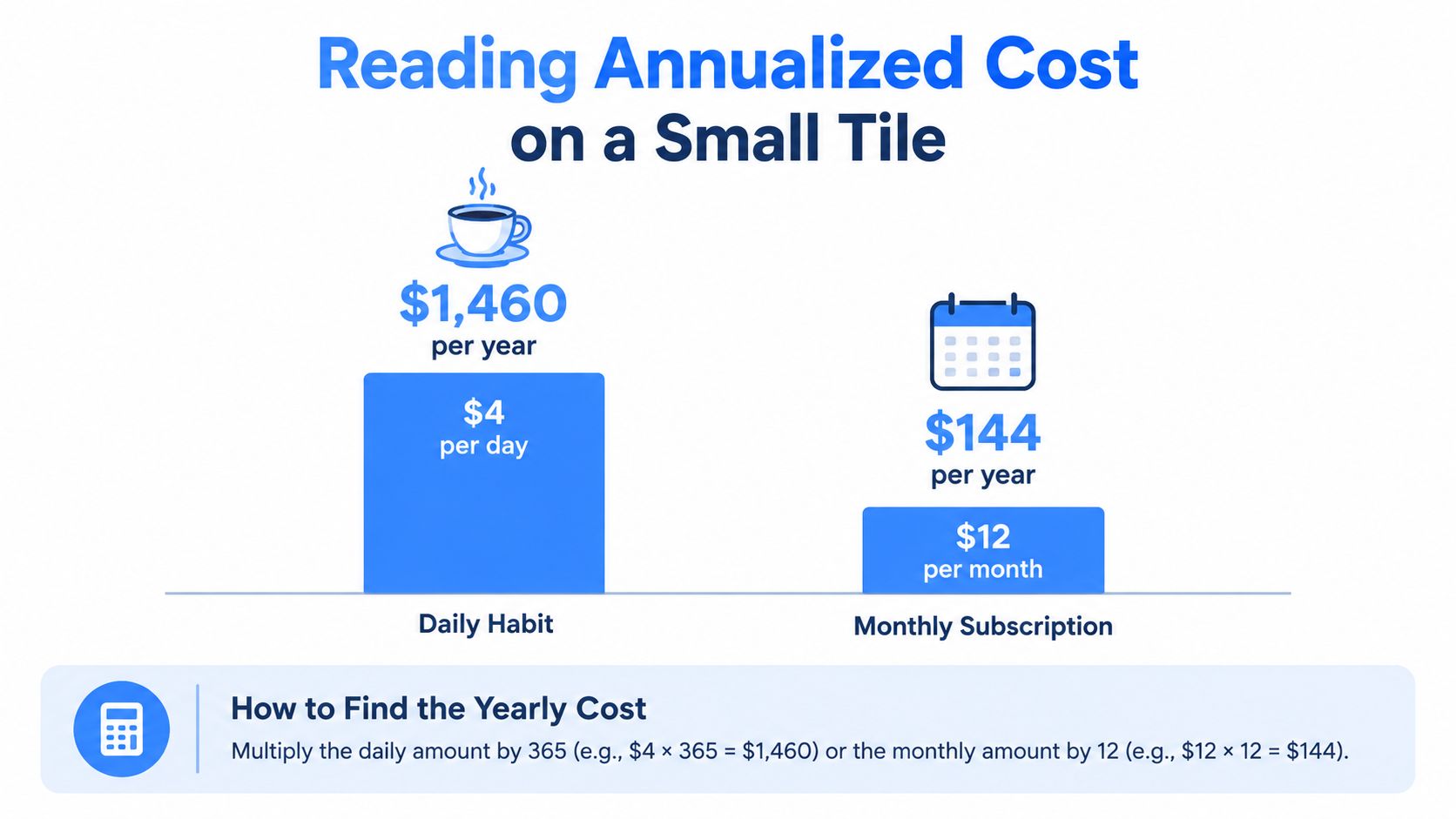
The same principle works for charges billed weekly, quarterly, or yearly: convert each into a yearly estimate, then compare like with like. A projected annual view can make it clearer whether a subscription is worth keeping, whether skipping a cycle suits your plans, or whether it's time to follow the merchant's cancellation process. For more examples of this calculation, see how to work out an annual total cost.
Annualized cost is a planning figure, not a promise about what will appear on your bank statement. A charge may vary, stop recurring, or be misclassified; projections can change as later transactions clarify the pattern. Check the merchant and cadence before treating the estimate as certain.
Practical rule: The yearly figure matters most when it changes your decision. If you'd keep the service either way, the monthly amount may be all you need. If seeing the annual total makes you reconsider, the widget has done useful work before the money leaves.
Designing Reminders You Will Not Tune Out
More alerts don't automatically mean better reminders. A field experiment involving approximately 160,000 utility customers compared behaviorally varied SMS messages with a standard email reminder. The strongest message framed on-time payment as a personal financial benefit and raised on-time payment by 1.01 percentage points against a 27% control baseline, a relative improvement of about 3.7% (randomized utility reminder trial). The practical lesson isn't to copy a script. It's to test whether the message gives someone a relevant reason to act.
Personalization and context matter more than a steady stream of generic pings. In a field experiment on unpaid hospital bills, messages containing the recipient's name significantly outperformed generic reminders, while social-norm and public-good appeals didn't produce a significant improvement (study of personalized financial reminders). For a recurring charge, useful context means identifying the merchant, amount, date, and next action without adding sensitive details.
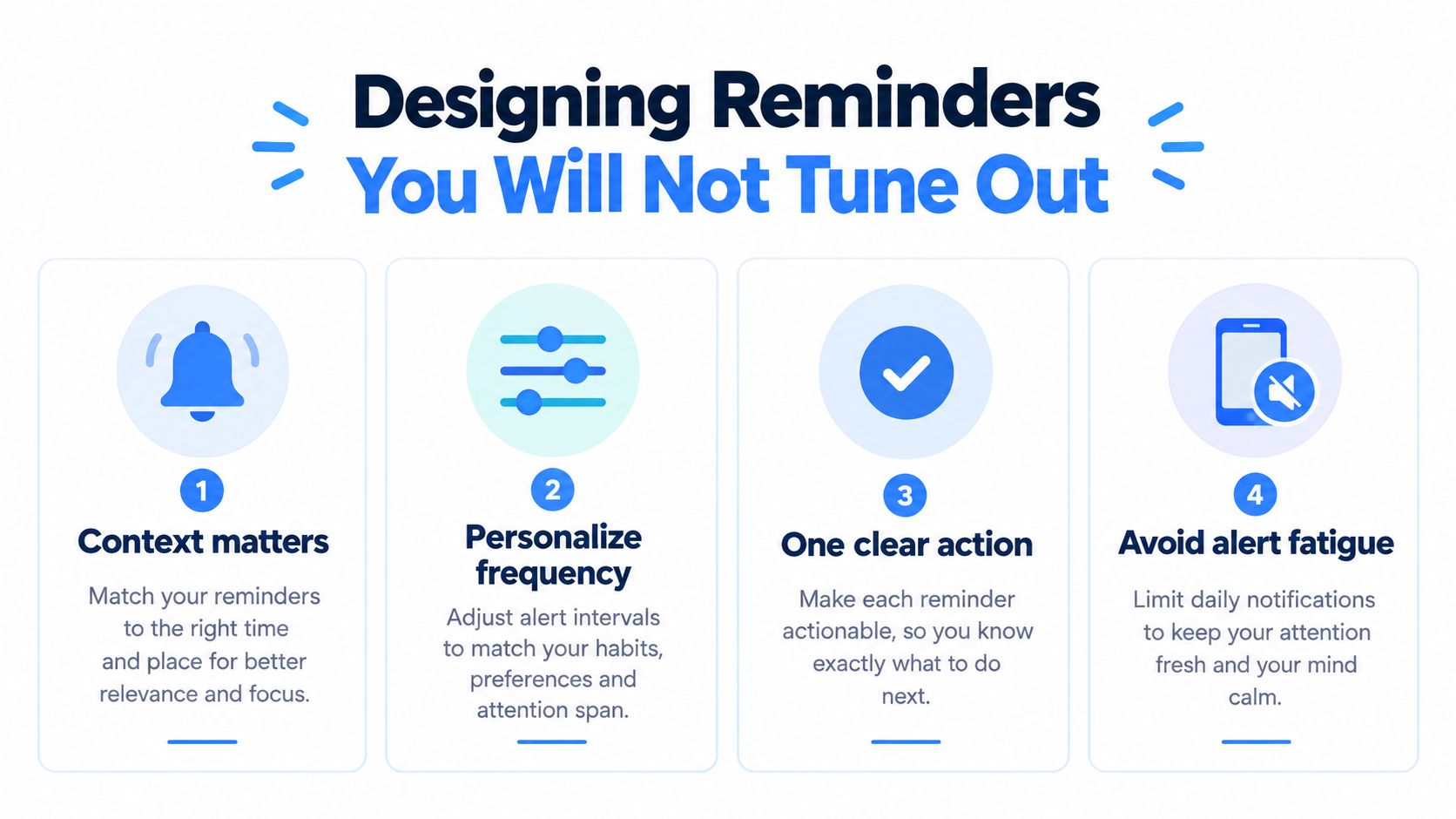
A calm system can work like this:
- Use the Due Today widget when one charge needs attention.
- Consolidate several imminent charges into a digest rather than sending a separate alert for each.
- Silence low-priority categories that rarely need action, but keep renewals visible when cancellation or review is time-sensitive.
- Make the action explicit, such as review, skip, or mark as handled.
Quiet hours, time-zone changes, shared finances, and irregular income also affect what counts as a useful reminder. A due date alone can't tell you whether a charge creates a cash shortfall. The better prompt asks whether you need to act, and gives you enough context to decide without making your phone feel like a collection agency.
Matching Widgets to Real Spending Situations
Each widget should solve a specific problem you're likely to face this week. Use this table to choose a starting point:
| Widget | Best for | Size |
|---|---|---|
| Due Today | A single morning check of the next charge | Small or medium |
| Upcoming | Planning around several charges due in the same week | Small or medium |
| Goal | Tracking progress while skipping cycles for a specific purchase | Small or medium |
| Budget | Seeing projected monthly outflow without opening the app | Small or medium |
| Net | Comparing projected expenses with logged income at a glance | Small or medium |
The size choice depends on how much you want visible at once. A short Due Today line keeps the screen clean; a medium Upcoming view gives you more dates to scan. Every additional tile should earn its space by helping you make a distinct decision.
Combining two widgets can work if they serve different moments. Put Due Today in Small on your first Home Screen for a quick check, then place Goal in Medium on a second screen if you're actively directing skipped spending toward a purchase. If both tiles show information you already see elsewhere, remove one. A useful setup reduces the number of times you need to open the app; it shouldn't turn the Home Screen into a finance dashboard you stop noticing.
A Short Setup Checklist and Honest Limits
Keep the first setup simple. Add one widget, give it a job, and see whether it helps before filling the screen with more tiles.
- Add one widget today. Start with Due Today if one visible reminder is enough, or Upcoming if you need to compare several renewals.
- Name a goal. Make it specific enough that saving toward it feels meaningful.
- Let one cycle redirect savings into it. Check whether skipping that expense moves you closer to the target.
- Review after the next charge lands. Confirm that the merchant, amount, date, and projection match what you expect.
A widget can read bank activity and prompt a decision, but it can't cancel a subscription for you, guarantee a refund after a missed renewal window, or stop a charge that has already posted. Bank connectivity is read-only, so a reminder may point you toward the merchant's cancellation method, but you still have to complete the cancellation and keep confirmation. For a fuller look at how reminders fit into a bill routine, see this guide to a bill reminder app.
The boundary is useful: the widget is a decision surface, not a guarantee. Its job is to show what's leaving your account, put the cost in yearly terms, and prompt you to act before the next charge.
FloosYo connects to bank transactions to detect recurring charges, project their monthly and yearly costs, and show renewal reminders in an iPhone widget. Visit FloosYo to see whether its Due Today, Upcoming, Goal, Budget, or Net widget fits the spending decisions you want to make before your next charge.